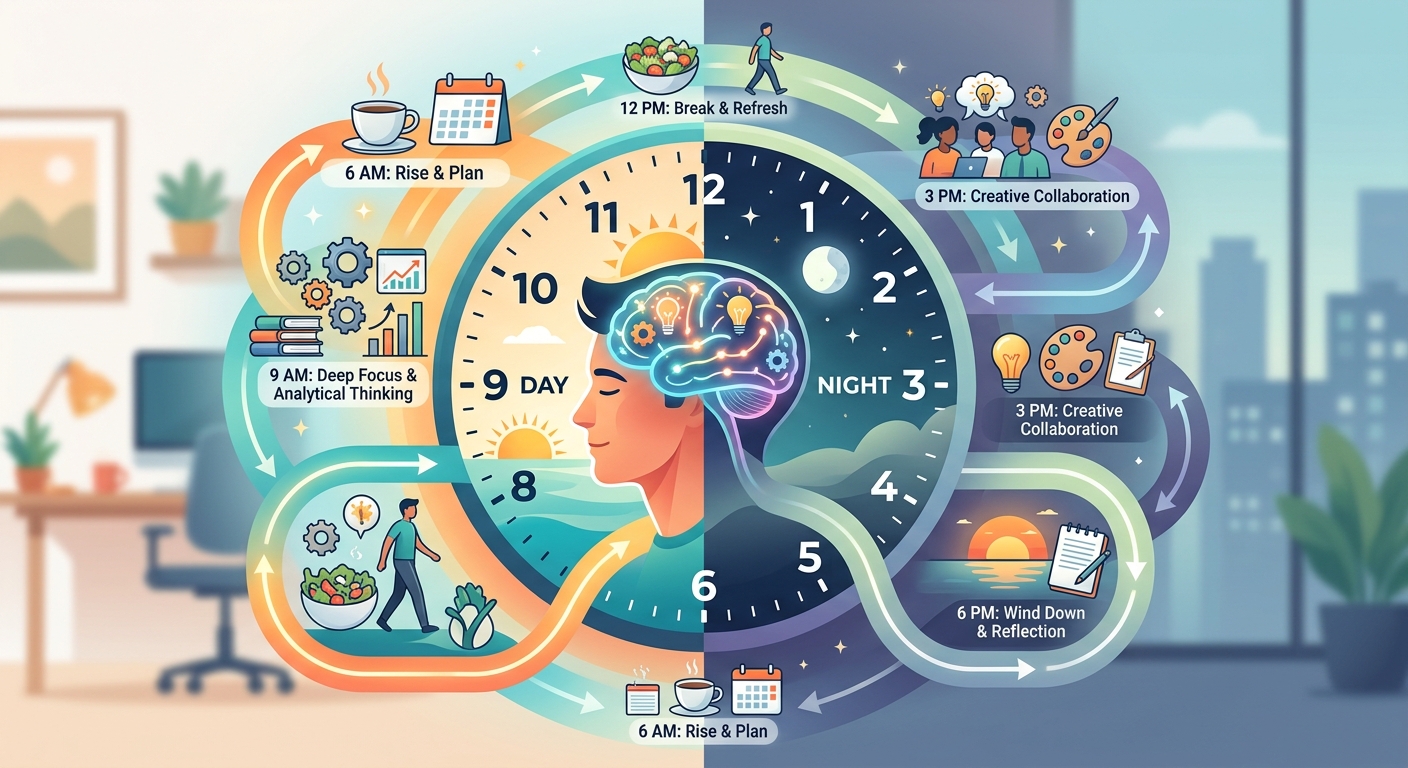
Coordinating a distributed team means someone is always starting or ending their day. Without a shared wall clock, a missed handoff or a silent stand-up can break momentum. The fix is not another chat app or calendar plugin. It is a personal alarm set with intention, tested for sound, and placed at the exact moment that matters to your workflow.
This article walks through a practical method for setting alarms around remote team rhythms: handoffs, stand-ups, and shared focus windows. It covers local-time conversion, alarm labeling, sound testing, device sleep limitations, and the boundaries that keep alarms respectful. The goal is a repeatable process, not a tool pitch. Only after you have chosen and verified your local time will you see one suggested tool that makes the whole thing simpler.
Why Personal Alarms Beat Calendar Reminders
Calendar notifications are passive. They pop up, you dismiss them, and the moment passes. An alarm, by contrast, demands action. You must stop, hear it, and decide. In a remote team, that forced pause is exactly what a handoff or stand-up needs. But alarms also fail when they ring at the wrong local time, or when they are ignored because the sound is too low or the phone is in sleep mode. The solution is a deliberate setup process that accounts for time zones, device behavior, and human respect.
Step 1: Know Your Local Time and the Team's Reference Time
Before setting any alarm, confirm your current local time against a reliable source. Your computer's clock may drift, especially after travel or daylight saving changes. Use the IANA time zone database as your reference. It is the authoritative source that operating systems and programming languages rely on. Visit https://www.iana.org/time-zones to verify the rules for your region. Write down your UTC offset and your team's common meeting time in UTC. For example, if your stand-up is at 14:00 UTC and you are in UTC+2, your local alarm time is 16:00. Double-check the conversion with a calculator or a second device. A one-hour error can make you late or wake a colleague.
Step 2: Set Alarms for Three Team Rhythms
Distributed teams have three repeating events that benefit from personal alarms. For each, set a single alarm with a clear label and a sound that you can hear in your workspace.
Handoff Alarms
Handoffs occur when one time zone passes work to another. Set an alarm five minutes before the handoff window opens. Label it with the project name and the person receiving the handoff, for example, "Handoff: Alice db migration." This alarm is not a reminder to start working. It is a signal to finish your current task and prepare the handoff notes. If your team uses a shared document or a ticket system, have that open before the alarm rings.
Stand-Up Alarms
Stand-ups are the most common failure point across time zones. A team in New York, London, and Sydney cannot all meet at the same local hour. Set your stand-up alarm for your local time, but also set a pre-alarm 10 minutes earlier labeled "Stand-up prep: review yesterday's notes." The main alarm should be loud enough to hear over headphones or ambient noise. Test it before the first stand-up. If you share a workspace, use a gentle tone or headphones to avoid disturbing others.
Shared Focus Windows
Some teams designate two or three hours per day when everyone should be available for real-time collaboration. This is not a meeting. It is a focus window. Set an alarm at the start of the window labeled "Focus start: mute Slack, open IDE." Set another alarm 15 minutes before the window ends labeled "Focus end: wrap up, push changes." These alarms help you switch contexts intentionally, rather than drifting into email or social media.
Step 3: Label Alarms with Time Zone and Purpose
An alarm labeled "Stand-up" is useless if you forget whether it is your local time or the team's reference time. Adopt a naming convention that includes the UTC equivalent and the purpose. For example: "Stand-up (14:00 UTC) prep" and "Stand-up (14:00 UTC) start." If you use a device that supports long labels, include the names of the colleagues who will be online. This reduces confusion when you travel or when daylight saving changes. Update the labels twice a year, or use a tool that adjusts automatically.
Step 4: Test the Alarm Sound and Device Behavior
An alarm that does not make a sound is a silent failure. Test your alarm sound before relying on it. Play the sound at the volume you will use during a typical work session. Walk to the farthest corner of your room where you might be during the alarm. If you cannot hear it clearly, increase the volume or change the tone. Many devices have a "preview" or "test" button. Use it. Also check whether your device allows alarms to play when it is in sleep or do-not-disturb mode. Some phones and computers mute all sounds during certain hours. On a Mac, for example, alarms set in the Clock app may not play if the system is in silent mode. On an iPhone, alarms set through the native Clock app will play even in silent mode, but third-party apps may not. Read your device's documentation or test by setting a one-minute alarm while the device is in sleep mode. If the alarm does not ring, you need a different approach. The MDN Autoplay guide explains why browsers and devices restrict sound playback under certain conditions: https://developer.mozilla.org/en-US/docs/Web/Media/Guides/Autoplay. A web-based alarm clock may fail if your browser blocks autoplay or if your computer goes to sleep. A dedicated alarm app or a physical alarm clock avoids these limits.
Step 5: Respect Boundaries Outside Working Hours
Your alarm is for you, not for your team. Never set an alarm that rings in a shared channel, a voice call, or a video meeting unless everyone has agreed. If you need to remind a colleague about a handoff, send a text message or an email. Do not use an alarm that plays through a speakerphone or a smart speaker in a common area. Also, respect your own boundaries. If your team's stand-up falls outside your agreed working hours, do not set an alarm. Instead, request a shift in the meeting time or agree to catch up asynchronously. An alarm that forces you to work at 10 PM will lead to burnout, not productivity.
Step 6: Choose a Tool After You Verify Your Local Time
You have confirmed your local time, labeled your alarms, tested the sound, and set boundaries. Now you need a tool that can manage multiple alarms with different labels and sounds across days. A simple, reliable option is an online alarm clock that lets you set alarms by time and label them clearly. It should support time zone selection, sound preview, and repeat scheduling. Avoid tools that require an account or that sync alarms to a cloud service you do not control. A local app on your phone or computer is often more reliable than a web-based tool, because web-based alarms can fail if your browser closes or if your internet drops. Test whichever tool you choose for at least one full workday before depending on it.
Common Failure Cases and How to Avoid Them
- Wrong time zone after travel. Always reset your alarms after crossing time zones. Do not assume your phone will update automatically. Some phones keep alarms at the original time zone even after you change the system clock.
- Alarm silenced by device settings. Test alarms in sleep mode, do-not-disturb mode, and with headphones plugged in. Many devices have separate volume controls for alarms, media, and notifications.
- Alarm rings but you ignore it. Place the alarm on a device you cannot easily dismiss from bed or from a different room. A phone alarm on a nightstand is easier to ignore than a computer alarm that forces you to click a dialog box.
- Team changes time zones. When a colleague moves or a region changes daylight saving policy, update your alarms. The IANA time zone database tracks these changes. Check it at the start of each season.
- Alarm label becomes outdated. Review your alarm labels every month. Remove alarms for projects that ended. Rename alarms for people who left the team. A stale label can cause confusion during a handoff.
Keep It Simple and Respectful
Personal alarms are a low-tech solution to a high-complexity problem. They do not require a new platform, a subscription, or a team-wide policy. They require only that each person knows their local time, sets a clear label, tests the sound, and respects the boundaries of their own schedule and their colleagues' schedules. Start with one alarm for tomorrow's stand-up. Add a handoff alarm next week. After a month, review which alarms helped and which ones you ignored. Remove the ones that do not work. The goal is not to fill your day with alerts. It is to make sure the few moments that matter do not slip away.