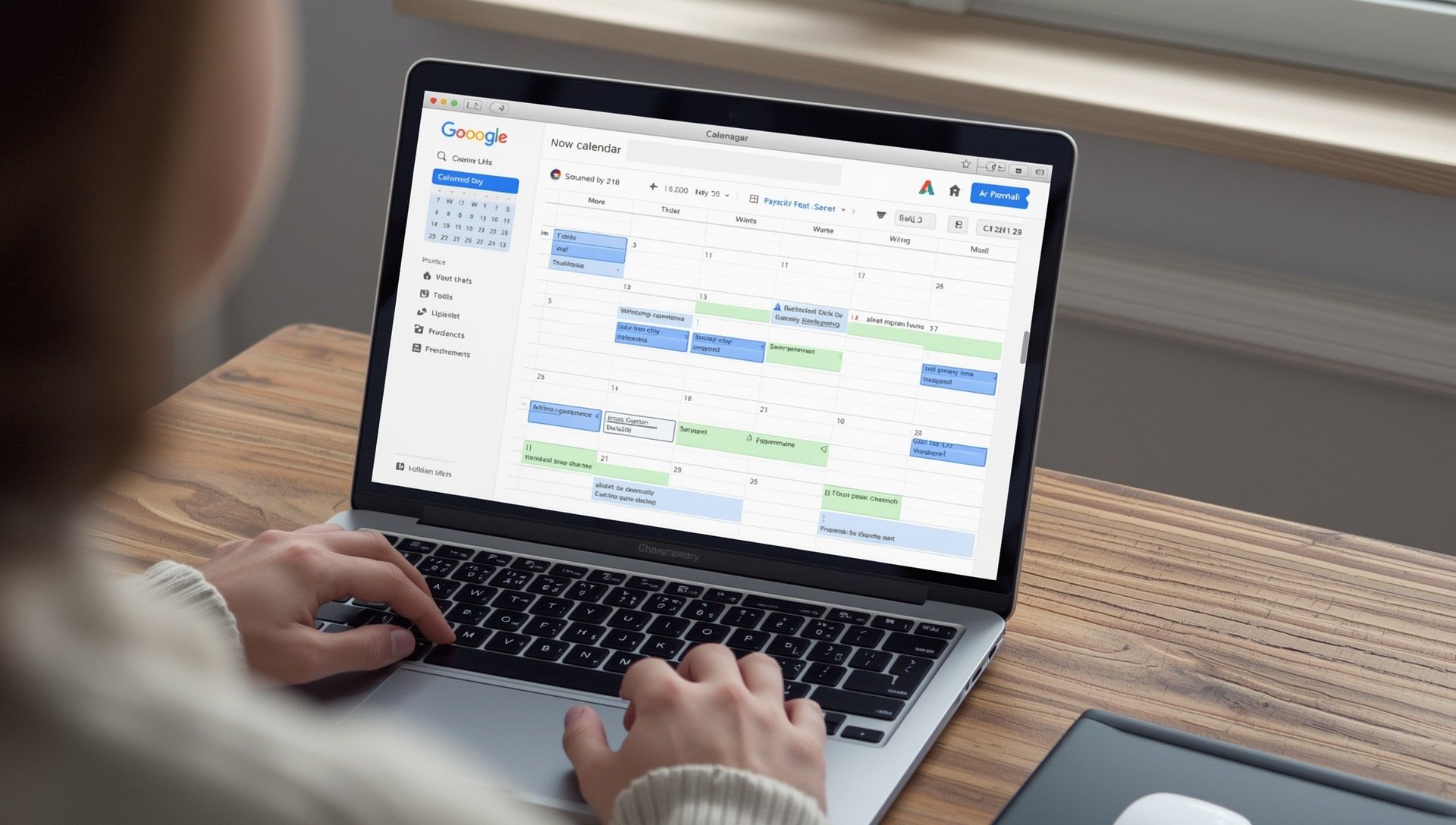
Managing schedules across regions becomes smoother when your calendar reflects more than one time zone. Many people juggle teams in places like EST and PDT or track travel dates across UTC, JST, and AEST. Dual time zone displays help reduce mix ups and keep your appointments consistent. Google Calendar and Microsoft Outlook both offer features that show two zones side by side. This guide walks you through setup, accuracy checks, and essential tips for clarity.
Key Takeaway
Both Google Calendar and Outlook allow you to enable dual time zone viewing quickly. By pairing your primary zone with a secondary region, you can plan meetings smoothly, avoid scheduling mistakes, and navigate cross regional communication with clarity.
Why Dual Time Zones Improve Planning
When you work with teams across different regions, checking a tool like the global time zone map becomes essential. Seeing two zones inside your calendar saves time and reduces mistakes. You no longer need to calculate manually or convert every meeting. The calendar handles the adjustment as soon as you enable the feature. This becomes helpful for planners coordinating across areas like CET, HKT, WET, and many more.
How Dual Time Zones Work Behind the Scenes
Digital calendars rely on internal offset data similar to the information found in the zone directory. Each region has an offset relative to a reference like GMT. When daylight changes happen, such as shifts into EDT or CEST, the calendar adjusts your events automatically. By enabling two zones, your calendar simply mirrors both offsets at once.
Enable Dual Time Zones in Google Calendar
Google Calendar makes time zone control straightforward. You can add one primary and one secondary display zone. This is especially useful for hybrid work teams spread across regions such as AEDT or MSK.
- Open Google Calendar in a browser.
- Select the Settings gear icon.
- Choose Time Zone from the left side menu.
- Enable Display secondary time zone.
- Choose your second region, such as JST or PKT.
- Add labels for clarity, like Home or Tokyo Team.
Once saved, both zones will appear vertically next to your calendar grid.
Understanding Labels and Placement
Labels help keep your zones organized. For example, if you label EST as Headquarters and PDT as West Coast Office, you instantly know how your meetings align. This becomes helpful when setting up new cross regional projects.
Enable Dual Time Zones in Microsoft Outlook
Microsoft Outlook offers a similar setup. Both Outlook desktop and Outlook on the web let you view two time zones simultaneously. In the desktop version, the zones appear to the left of your daily or weekly calendar. This mirrors the functionality found in Google Calendar.
- Open Outlook.
- Select File then Options.
- Choose Calendar.
- Under Time Zones, enable Show a second time zone.
- Enter your label and choose a region like AST or WAT.
- Select OK to apply.
From this point, both zones display beside your calendar’s hour column.
Comparing Google Calendar and Outlook Side by Side
Both tools show two zones clearly, yet their layouts differ. Google places zones on top of the grid, while Outlook places zones on the left side. Both rely on accurate offset data. If you ever want to verify unusual offsets, the guide to half hour and 45 minute offsets offers valuable context.
| Platform | Dual Display Layout | Best For |
|---|---|---|
| Google Calendar | Displays primary and secondary zones at the top | Browser users and mobile access |
| Outlook Desktop | Displays dual zones beside the hour column | Office environments |
Seeing the comparison clearly helps planners choose the tool that matches their workflow. Many remote teams combine both, using Google Calendar for personal scheduling and Outlook for corporate events.
When Dual Time Zones Become Especially Useful
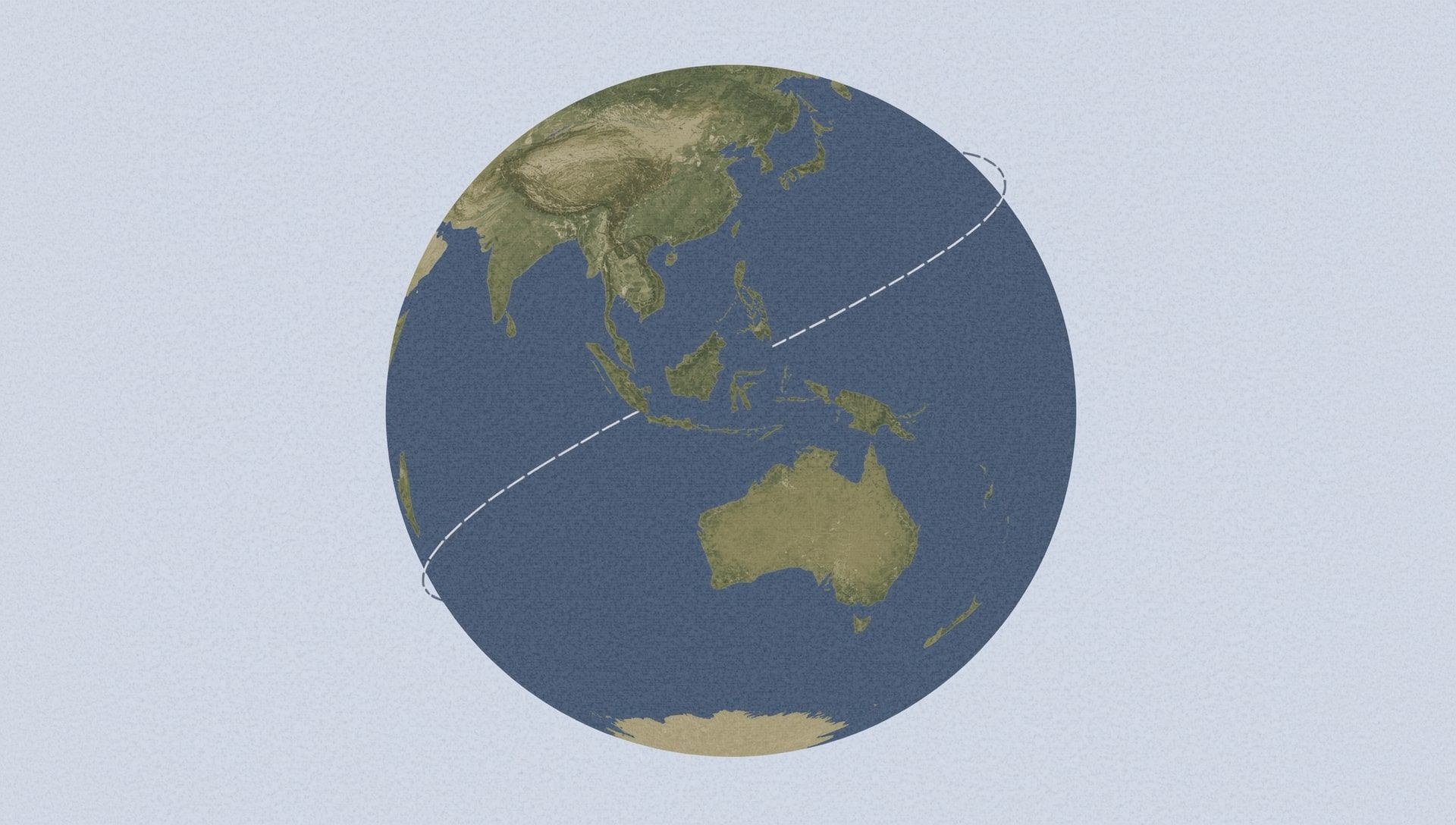
These features shine when handling tricky scheduling patterns or unusual offsets that vary from standard one hour shifts. Planners handling international travel often reference articles like why the International Date Line is not straight to avoid confusion when arranging sessions near boundary regions. Dual displays prevent miscalculations that might occur during overlapping daylight changes.
Using Dual Zones for Team Coordination
Dual zones help anyone who works alongside people across regions. A few examples include:
- Global project managers.
- Virtual assistants coordinating multiple teams.
- Travel coordinators setting client schedules.
- Developers collaborating across KST, HKT, and SST.
- Support teams offering coverage across continents.
The dual zone view reduces cognitive load and helps people avoid time conversion errors.
Why Time Zone Accuracy Matters
When you schedule meetings across time differences, accuracy protects productivity. A mistake of even one hour can create stress for entire teams. Real time references like the airline and pilot time zone guide demonstrate how important correct offsets become when coordination matters.
If either Google Calendar or Outlook displays incorrect zones, review your computer or mobile device time settings. A mismatch there can override calendar defaults.
Checking Time Zones for Rare or Complex Regions
Some regions use fractional offsets or unique daylight schedules, such as ACST, NST, NDT, and WIB. If your calendar does not display these correctly, check reference tools like the odd time zone borders guide.
Design a Calendar Layout That Works for You
Most people benefit from pairing their home zone with a single secondary region. Others need to monitor multiple zones using additional online tools or browser plugins. If you work across three or more regions, you may also keep a manual reference using the time zone facts page.
Creating Smooth Scheduling Across Regions
Dual time zones make planning easier, clearer, and quicker. Whether you set up meetings across EET, MET, WEST, or AEDT, your calendar becomes a trusted navigator once dual zones are active. These tools let you map out your week without manually converting times.
With the right setup, both Google Calendar and Outlook transform into powerful scheduling assistants. Clear displays, accurate zone detection, and smart labeling help you stay aligned with your team no matter where they live.