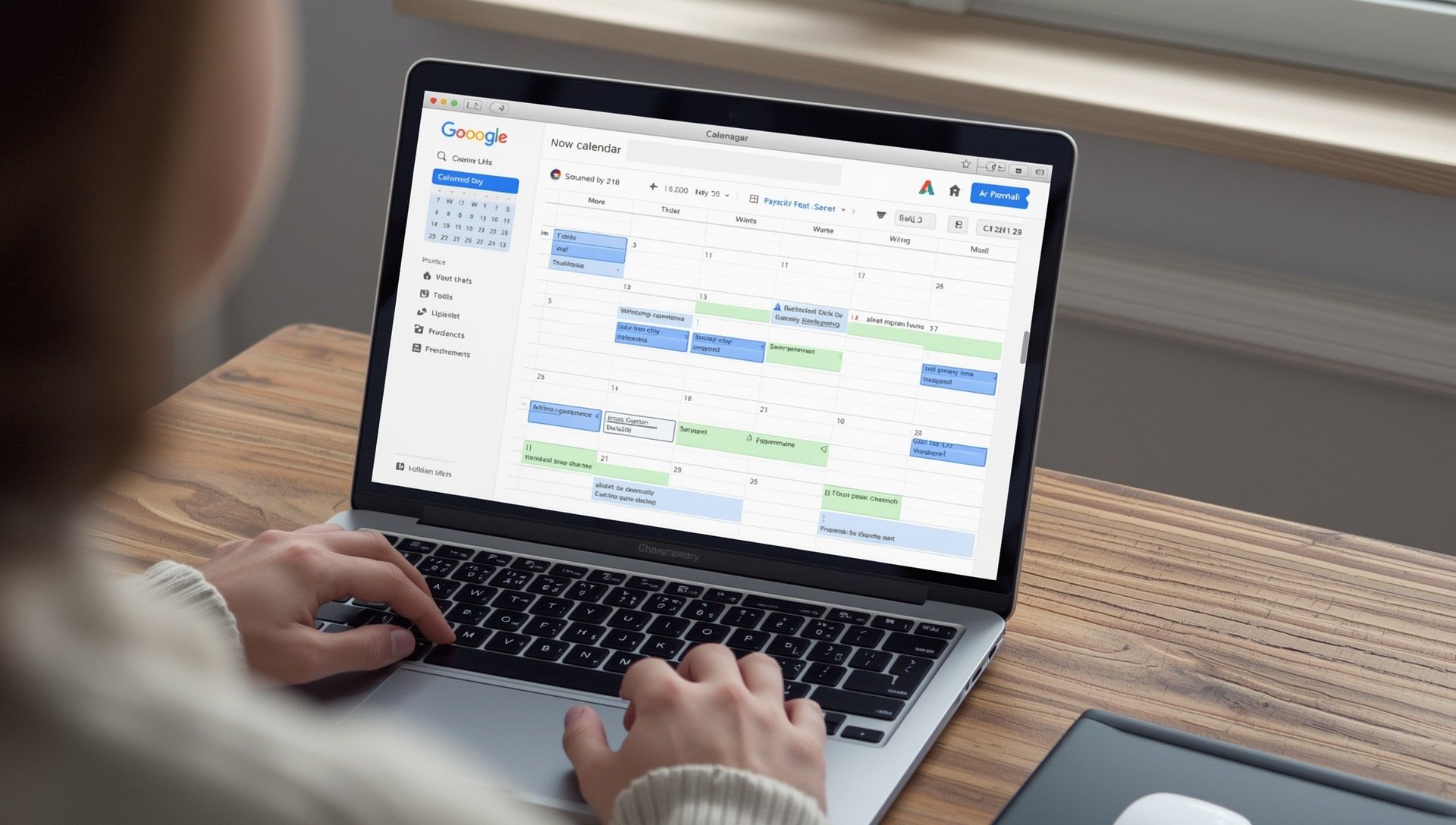
When Windows switches to the wrong time zone, even simple tasks become frustrating. Video calls start late, reminders pop up at strange moments, and travel days turn chaotic. Automatic time zone features usually work smoothly, but small glitches can appear after major updates, long flights, or hardware changes. With a few quick checks, you can bring your clock back in sync and keep your device running smoothly.
Key Takeaway
Windows may display incorrect time zone information if location access is restricted, settings are misconfigured, or system data becomes outdated. You can fix most issues by adjusting location permissions, resetting time services, or choosing the correct zone manually.
What Causes Automatic Time Zone Issues in Windows
Windows uses location data and internal time services to place your clock in the correct zone. When these tools fail to communicate, the system may default to the wrong region. If you recently installed updates or traveled across regions such as Eastern Standard Time or Pacific Daylight Time, your system may take a moment to adjust.
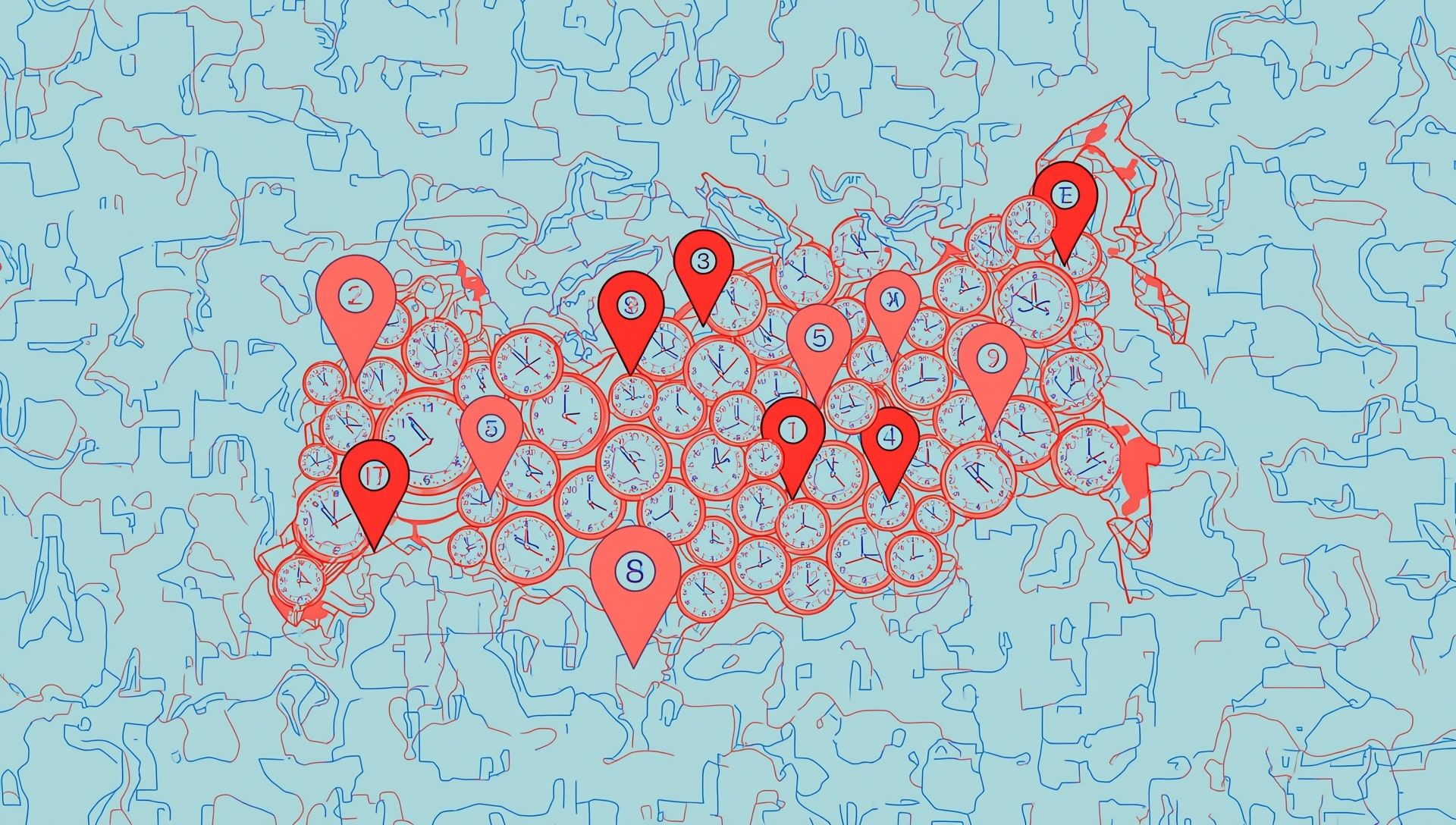
Windows also relies on external references similar to those shown in the interactive zone map. If your device cannot confirm your location, it may choose an incorrect zone.
Check Whether Automatic Time Zone Detection Is Enabled
Windows cannot set your time zone automatically if the feature is turned off. Follow these steps:
- Open Settings.
- Go to Time and Language.
- Select Date and Time.
- Ensure Set time zone automatically is turned on.
- Verify that Set time automatically is also enabled.
If your device still shows the wrong zone, the next steps help uncover deeper issues.
Allow Windows to Access Your Location
Windows cannot determine the correct time zone without location permissions. This often causes problems after privacy settings are changed. To fix it:
- Open Settings and go to Privacy and Security.
- Select Location.
- Ensure Location Services is enabled.
- Scroll to App permissions and confirm that Windows Shell Experience can use location.
If location is turned off, Windows may guess your zone incorrectly by assuming a nearby region like CST or MST without accuracy.
Manually Select a Time Zone to Override Errors
Sometimes automation becomes unreliable after updates. You can switch off automatic detection and choose the correct zone manually. This creates stability and prevents unexpected shifts, especially during travel or remote work.
Windows supports global zones including EDT, GMT, JST, KST, AEST, and many others that can be explored in the zone directory.
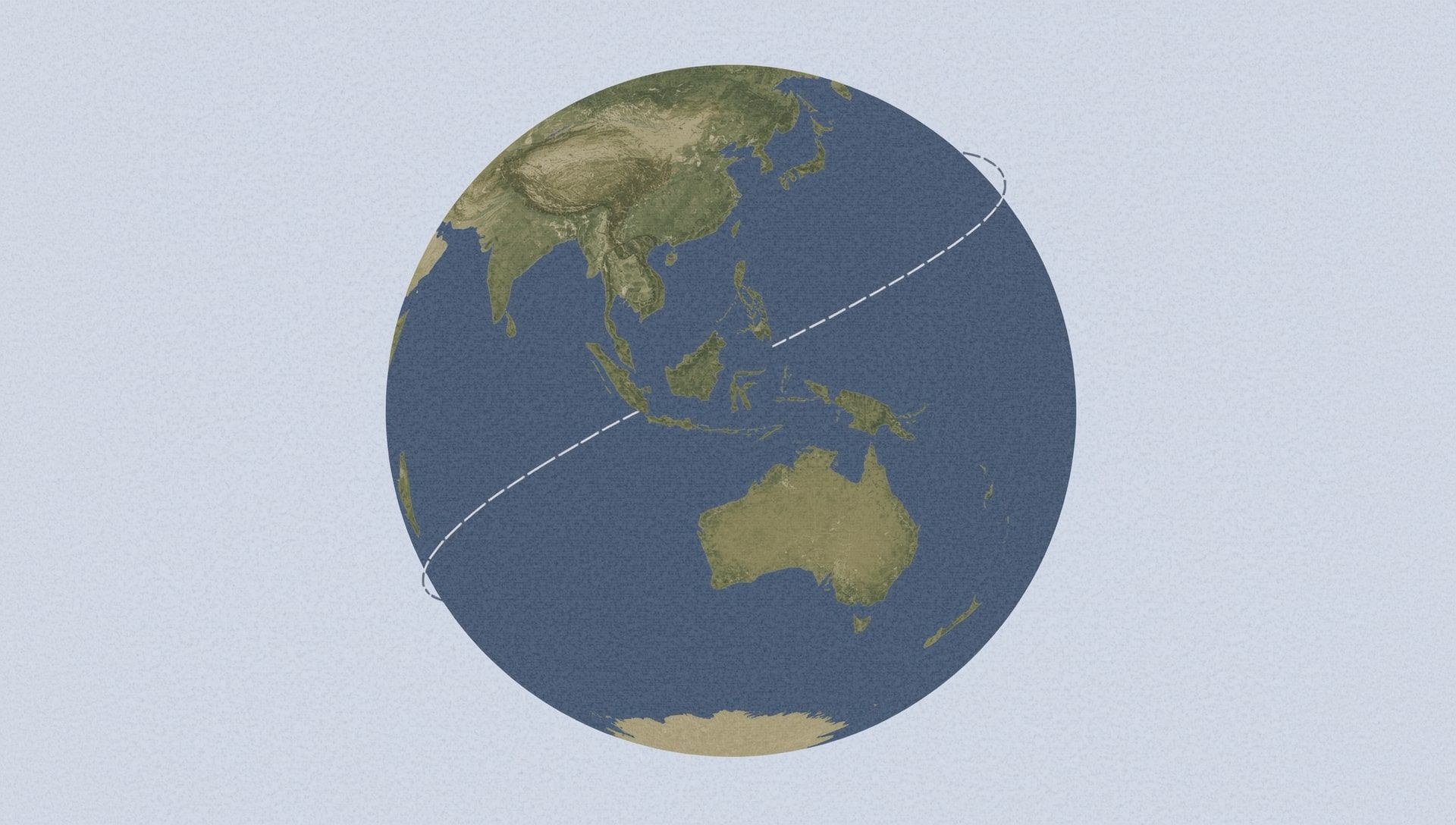
If you recently returned from a long flight, your device may lag behind real time. Using the directory of global offsets helps verify your correct region before setting it.
Restart Windows Time Service
The Windows Time service keeps your clock synchronized. If it becomes stuck, your device may jump to an unrelated zone. Restarting it can bring your settings back to life.
Steps:
- Right click Start and open Windows Terminal.
- Run the command: net stop w32time
- Then run: net start w32time
After restarting the service, check your time again. If it defaults to something unexpected like UTC or WAT, continue troubleshooting.
Reset Network Settings if Your Device Travelled Recently
Traveling across zones sometimes creates cached data that conflicts with Windows detection. Resetting network settings removes outdated region data and refreshes your device’s understanding of your current zone.
You may notice this when moving between regions such as AKST to HST or from CET to EET.
Check Whether VPN Software Is Causing Conflicts
VPNs mask your location. If your VPN routes through a region like BST or MSK, Windows may think you are physically there. This leads to sudden jumps and incorrect offsets.
Solutions:
- Disconnect the VPN temporarily.
- Disable automatic time zone switching.
- Restart your device after disconnecting.
Use Global Time Zone References to Confirm the Correct Region
When your system behaves unpredictably, cross checking your expected zone helps. Tools like the guide to confusing borders reveal how nearby regions may overlap. You can also compare the intended offset with examples like:
Checking these helps confirm you are selecting the correct region in Windows.Bringing Your Windows Clock Back to Stability
Automatic time zone glitches feel disruptive, but they are usually easy to fix with careful checks. When you adjust location settings, confirm the zone in Windows, restart key services, and compare your region with reliable references like the zone directory, your clock becomes accurate again.
Once the right settings are in place, Windows keeps time steadily whether you remain at home or travel across distant zones. With a stable time reference, your reminders, tasks, and digital life move smoothly again.